Performance Metrics
The performance metrics page lets you analyse your model’s forecast accuracy over time. It displays calculated metrics for each forecast category, filtered by a date range and model-specific options.
Accessing Performance Metrics
From the forecast dashboard, click Performance Metrics in the top navigation bar. This link is only enabled for models that have performance metrics configured.
Metrics Tables
Each selected category gets its own table. The table body displays your configured metric values. The specific metrics shown depend on how your model’s performance queries are configured.
Note: Metrics data is derived from a daily extraction process. There may be a short delay before the most recent model run data appears in the metrics.
Options Sidebar
The sidebar contains controls that filter and configure the metrics display.
Run Date Range
Use the date range pickers to control the window of historical runs included in the metrics calculation.
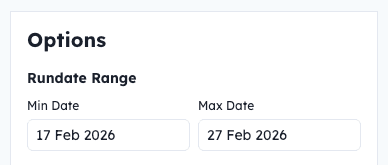
The run date range filter is always present. It provides two date pickers:
- Min Date — the start of the date range. Defaults to 3 months ago.
- Max Date — the end of the date range. Defaults to today.
Adjust these dates to narrow or widen the window of historical runs included in the metrics calculation. The tables update automatically as you change the dates.
Model-Specific Options
Below the date range, you may see additional options specific to the current model. These are defined by the model author. These options are injected as variables into the underlying metrics query, giving you fine-grained control over the calculation.
Exploring Metrics Data
To dig deeper into the raw data behind your metrics, click the Explore Data link.
This opens the Data Explorer with historical forecast output that was used to calculate the metrics pre-loaded, so you can query it and come to your own conclusions.
Next Steps
To learn more about exploring raw data with SQL, see Exploring Data with SQL. For details on how metrics queries are defined, see the Configuration File documentation.