Overview

pdView is the web application where you view, analyse, and interact with published forecast models. It provides an interactive dashboard for exploring forecast output, comparing models, reviewing performance metrics, and digging into raw data with SQL.

Logging in

pdView uses Auth0 for authentication. When you open the application, you see the login screen with two options:

  • Login — sign in with your existing account.
  • Signup — create a new account.

After you authenticate, you land on the model selection screen.

Selecting a model

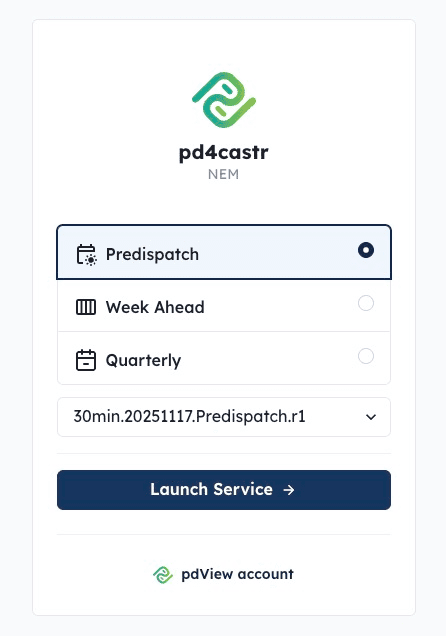
The model selection screen lets you choose which forecast to view.

  1. Select a time horizon using the radio buttons (for example, Day Ahead, Week Ahead, or Quarterly).
  2. Choose a model from the dropdown. The list is filtered to show only models that match your selected time horizon.
  3. Click Launch Service to open the forecast dashboard.
What you can do in pdView

Once you launch a model, the dashboard gives you access to several features:

  • Forecast dashboard — view forecast output as an interactive chart and data table. Filter by category, select historical run datetimes, and export data to CSV. See Viewing Forecasts for details.

  • Model comparison and sensitivities — overlay forecasts from multiple models on the same chart, enable “what if” sensitivity scenarios, and view input aggregations alongside your forecast. See Comparing Models & Sensitivities.

  • Performance metrics — analyse model accuracy over time with configurable date ranges and model-specific filters. See Performance Metrics.

  • SQL Viewer — explore raw model run data and performance metrics data using a browser-based SQL editor powered by DuckDB. See Exploring Data with SQL.

  • Publisher tools — monitor model run history, check run statuses, and debug failed runs. Available to users with publishing permissions. See Publisher Tools.

Guided tour

If you’re new to pdView, click Run Walkthrough in the top navigation bar. This launches an interactive 11-step tour that walks you through the key features of the forecast dashboard, including the category selector, chart and table views, options sidebar, and more.

Next steps

Head to Viewing Forecasts to learn how to read and interact with the forecast dashboard.