Exploring Data with SQL
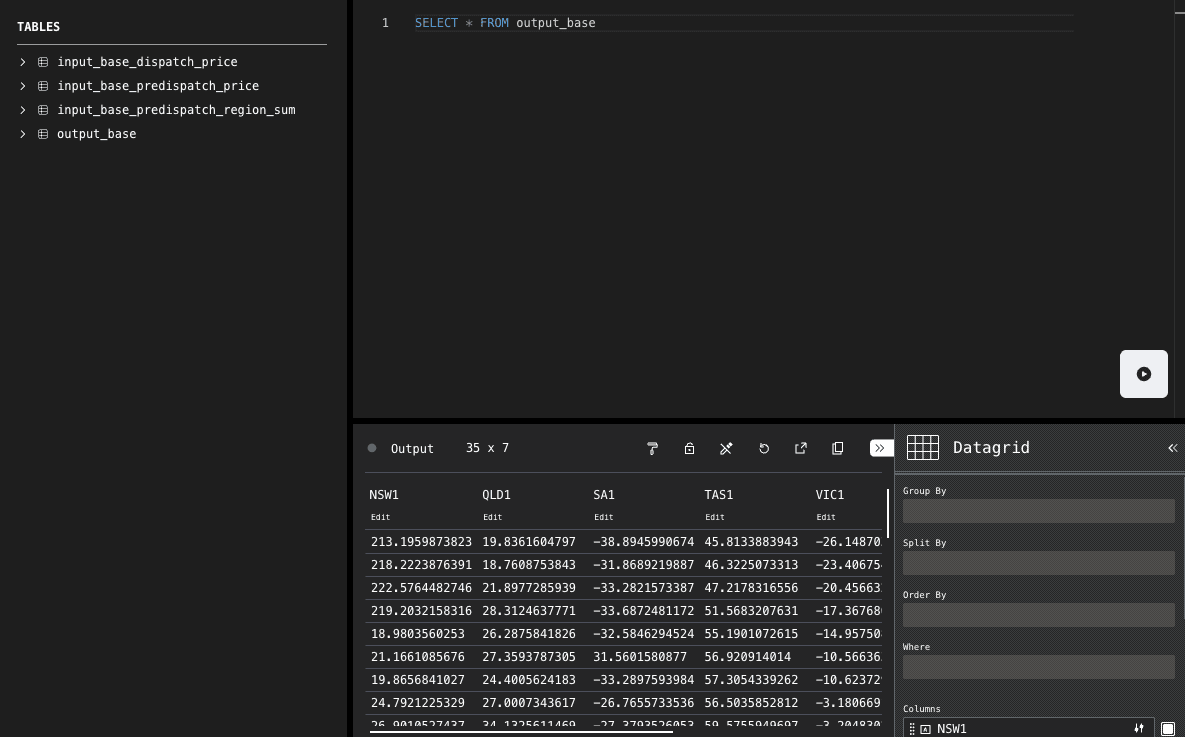
The Data Explorer is a browser-based data exploration tool that lets you write and run SQL queries against your model’s data.
How to Access the Data Explorer
You can open the Data Explorer from three places in the pd4castr UI:
-
From the forecast dashboard — in the options sidebar, hover over a run datetime and click the Explore Run Data icon (a folder with a magnifying glass). This opens the Data Explorer with that model run’s input, output, and dataset data pre-loaded
-
From the performance metrics page — click the Explore Data link to open the Data Explorer with historical forecast output that was used to calculate the metrics pre-loaded
-
From a model run view — click the Explore Data link below a view’s result to open the Data Explorer with exactly the tables that view references pre-loaded, and the view’s SQL query pre-filled in the editor with the parameter values the result ran with
Writing and Running Queries
Write your SQL in the editor using standard SQL syntax. The editor opens with a working starter query for the data you loaded — for a model run view, that is the view’s own SQL, ready to run and tweak.
To run a query:
- Write your SQL in the editor.
- Click the play button in the bottom-right corner of the editor. Alternatively, select a portion of text to run only that selection.
- Results appear in the table view below.
Viewing Results
Query results render in an interactive table view that supports several features:
- Sorting — click column headers to sort.
- Filtering — use the table toolbar to add filters to columns.
Available Data
The data available in the Data Explorer depends on how you accessed it:
-
Model run data — when opened from a run datetime in the forecast dashboard, the database contains the run’s data under the same table names views use: an
outputtable, aninput_<key>table per model input, and adataset_<key>table per declared dataset. If the model has sensitivities, each sensitivity run at that datetime addsoutput_<sensitivity>andinput_<sensitivity>_<key>tables alongside the base run’s. -
Performance metrics data — when opened from the metrics page, the database contains historical forecast output that was used to calculate the metrics, with a table for each model used in the comparison.
-
Model run view data — when opened from a view, the database contains only the tables that view’s query references (
output,dataset_<key>,input_<key>), matching exactly what the view ran against.
Next Steps
To learn about monitoring model runs and debugging failures, see Author Tools.